 Loading your hub…
What changed:
Loading your hub...
Good morning
One step at a time. Pick up where you left off.
Your Hub has a new address
You're on Warp Hub now. Open it at hub.warprecruit.com and add that to your home screen instead of this one. Sign in with the same email and password; your numbers are all there.
Open the new addressJoin your team
Your team leader can text you a link. Tap it, or paste it here, and your numbers connect to your team's leaderboard.
Who do you report to?
Pick your upline so your numbers roll up to the right person on your team.
We need your headshot
For the team board and agency marketing. Upload it here — it saves to your profile, so there is nothing to text or email to anyone.
Needs You
Finish your contact info
So your team can reach you, and so we have your NPN on file.
0
Dials today
0
Contacts
0
Appts
0
Apps
Dial rooms
Calls
Full week →Quick Links
grid_view Open the Agent PortalYour commitments
AgreementToday
—
The Hub has a new look
The Hub has a new icon
In case you missed it
Questions? We've Got You
Andrea
Do the top one next. Finished steps fold away at the bottom.
Record your daily production.
Live Tally
Tap as you go — it fills the form below.
How long are you dialing?
Leads Resolved
Sold, or not calling it again.
Activity Logged!
Saved.
Something went wrong.
Your recurring weekly commitment across lead sources. This is not actual billed spending.
$0
Your weekly lead investments
One line per vendor. Naming the vendor is optional.
Compare results under each weekly commitment. APV is premium volume, not income or profit.
Nothing logged yet. Your numbers fill in here as you log.
Score
Tap a number to log it or fix it.
Appts Run
0
Apps
0
APV Written
APV per dial
——
8-wk avg / dial
—
Dials per app
—
APV per appt set
Dials
0— of goal
Show rate · last 4 weeks
—
Ready to Write
—
0
The funnel
Kept
Submitted
0
$0 APV
Issued & Paid
0
$0 APV
Every day you logged that month, with a total row. Opens in Excel, Numbers or Google Sheets.
This Week, Together
$0
APV logged
0
Dials
0
Appts Set
0
Logged
The leaderboard lights up once the team starts logging.
Most improved on last week, compared day for day. You do not have to be the top dialer to take this one.
Ranked by dials per active agent, so a small team can beat a big one. The network board shows name, photo, team and Dials or an activity score with no APV in it. Terms §4a.
How last week finished
Latest activity
Your whole downline: this week's activity, progress and APV. Daily logs, notes and individual policies stay with each agent and the agency owners.
Send this link to someone you're bringing in. When they sign up with it, they're on your team.
Team code
Already have a Hub account? Opening this link asks them to join your team, and their history comes with them.
Inviting someone who isn't joining your team? Send the Agent Hub signup link instead: Agency → Agents → Add an agent.
Building your own team? Get your own hub: an Agency screen to manage your people, your own team board and phone tree, and a link of your own that brings them in. Everyone who joins starts on the same steps you worked through. Your history comes with you.
Loading…
Check your contact details, team link and activation steps before you invite an independent agent.
Hubs around you
Let your team find you
Your hub is hidden from search. Turn it on and people can find it by name at /start and ask to join. They see the hub name and your first name and last initial, and you approve each one.
Connect your team
60 seconds. Answer fast, keep the streak.
Sample questions
These are general fundamentals written to show how the drill works — not from your pre-licensing course yet. Study from the course, not from these.
No runs yet.
0
Missed one? Watch it here. New recordings post overnight.
No recordings posted yet.
Add a replay
Private conversations stay between participants. Announcements come from your agency owners.
Messages are stored on our servers and are not end-to-end encrypted. Keep clients' names and policy details out of them. How messages are handled
Only team owners post announcements here.
Search an answer or watch a walkthrough, then try it in your Hub.
No answers or videos match. Try fewer words or choose another topic.
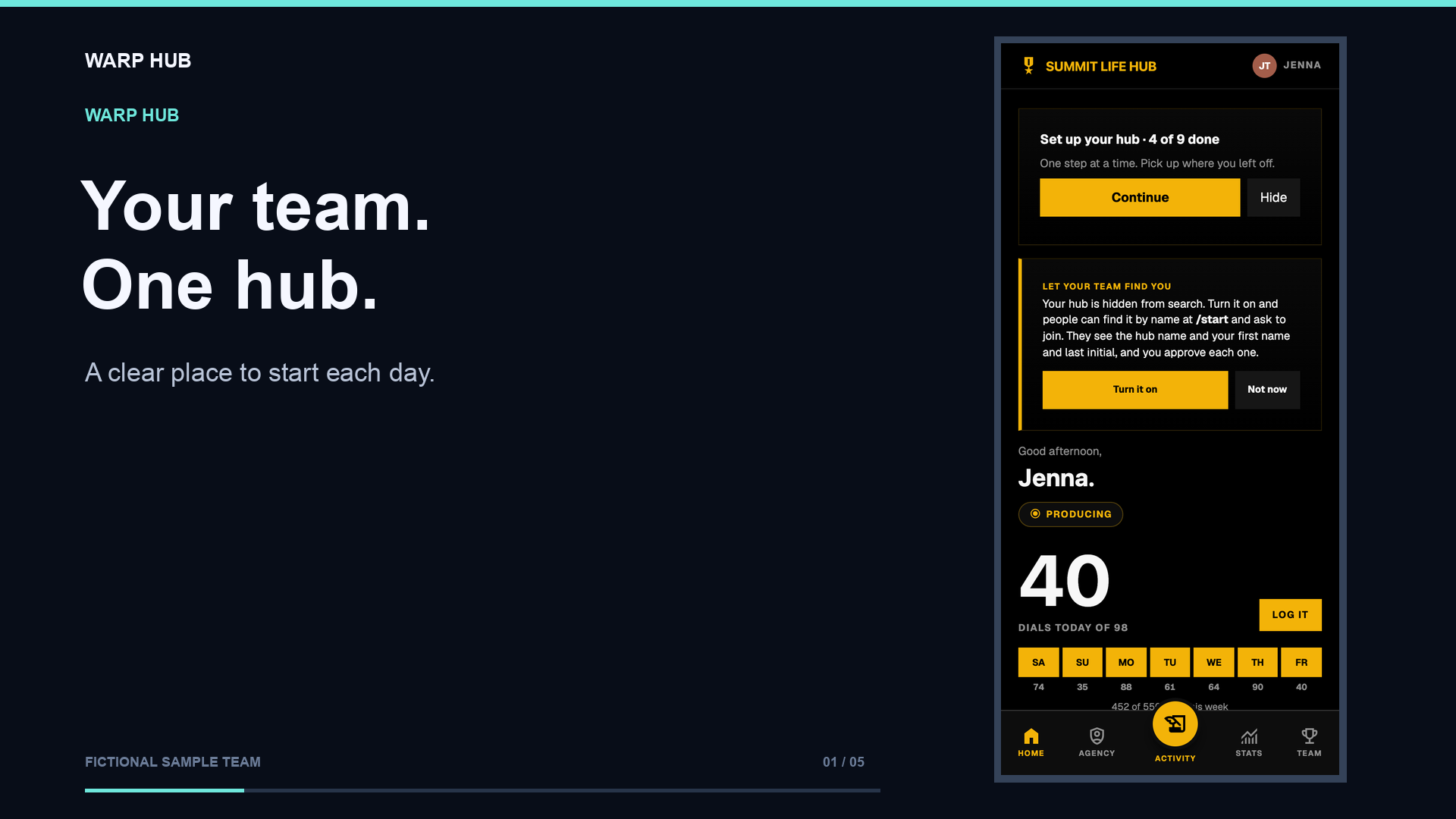 Get to know Warp Hub40 seconds · English captionsWatch introduction
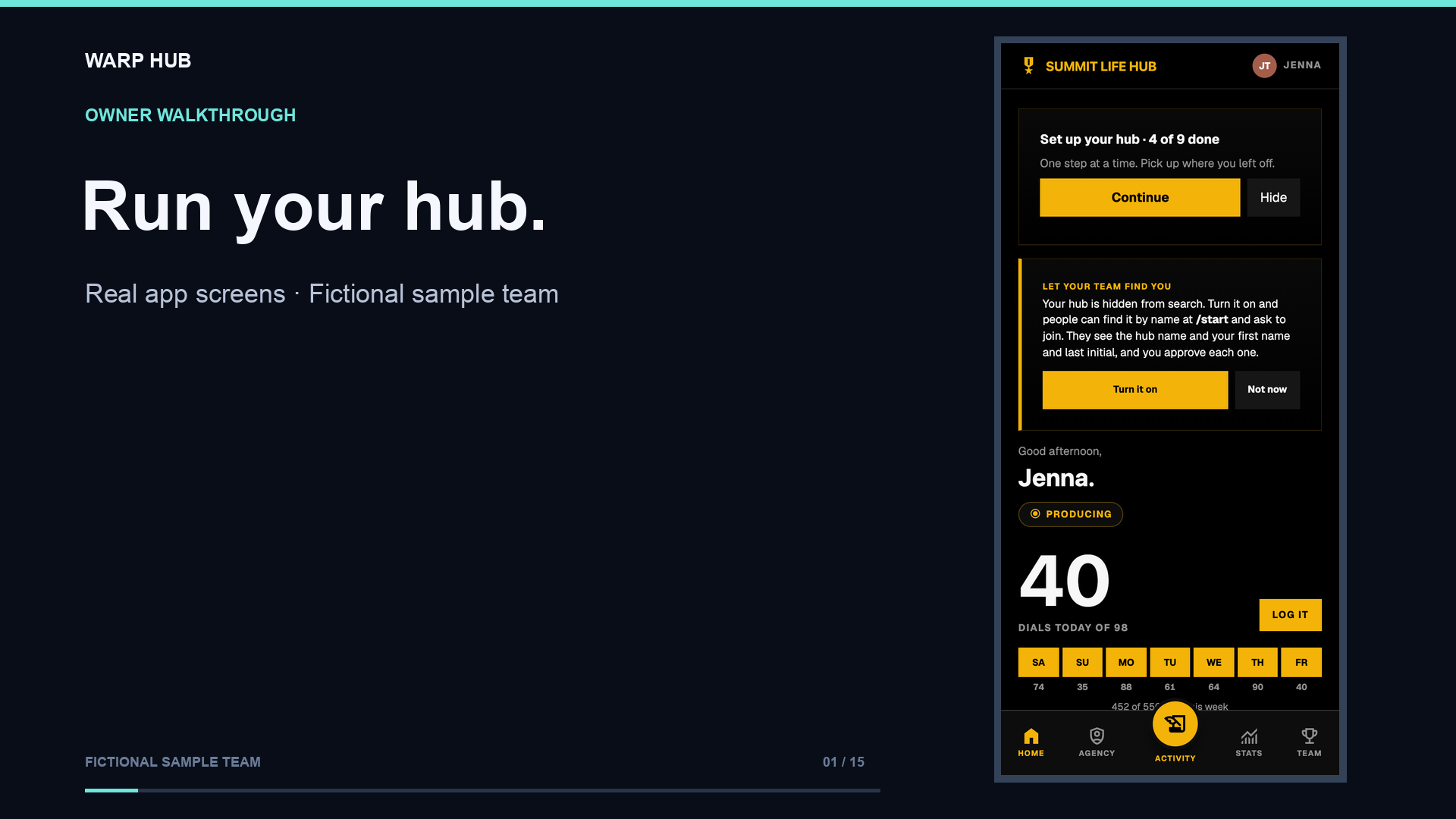 Set up and run your agencyAbout 3 minutes · English captionsWatch owner walkthrough
 Use your owner setup guide4:27 · English captionsWatch tutorial
 Invite agents to your team4:39 · English captionsWatch tutorial
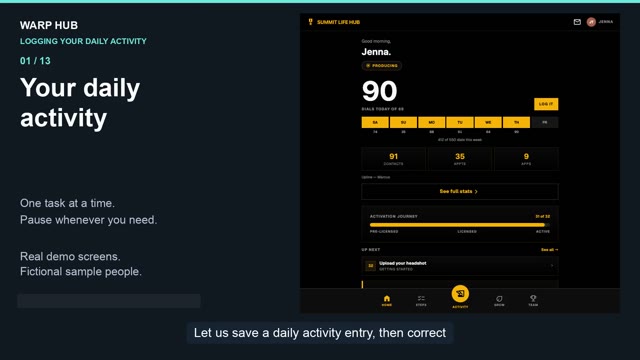 Log and correct daily activity4:51 · English captionsWatch tutorial
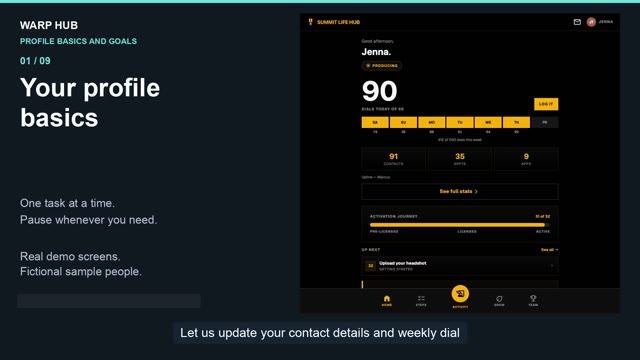 Set up your profile and dial goal1:50 · English captionsWatch tutorial
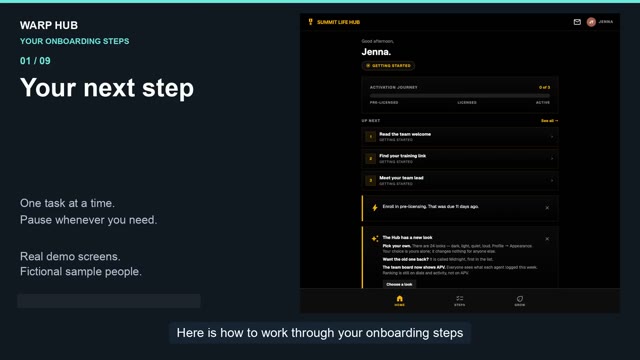 Complete steps and ask for help1:35 · English captionsWatch tutorial
Owners: open Run your hub, then Bring your team in. Copy your team link and send it to your independent agents. Your link lets them join your hub directly.
Watch: Invite your team (0:38)Owners: in Agency → Hub setup → Joining settings, turn on listing for your hub. People can search for your hub and ask to join. Review requests in Needs You. Your hub stays hidden from search until you list it.
Watch: Hub search listing (0:52)Owners: open Agency → Hub setup → Hub details. Update your hub name there. Leader contact details and quick links are under Hub setup → Home screen & links. My Profile holds your own contact and license details.
Owners: open Agency → Hub setup → Team goals. Agents can set their own dial goal in My Profile; the hub uses the agency floor when their goal is lower.
Watch: Weekly dial target (1:05)Owners: open Agency → Hub setup → Onboarding steps → Set up activation. The walkthrough explains sections, instructions, links, documents, milestones and licensed-agent skips. Use the help buttons beside settings, then Preview as an agent before finishing. A licensed-only hub can skip pre-license onboarding.
Watch: Activation steps (1:17)A milestone marks a key point, such as booking the exam or completing carrier contracts. The Hub uses these to show an agent’s stage and reminders. Assign each milestone to one step. Ordinary tasks can use None. Review missing milestones in Agency → Hub setup → Onboarding steps before previewing.
In Agency → Hub setup → Onboarding steps, edit a pre-license task and choose Already-licensed agents skip this. Use it for studying and exam tasks they have already completed. Keep team orientation, contracting and other tasks your agency still needs. Help beside the setting explains how the Hub handles it.
Open Steps and choose I need help with this step. Add an optional note, then send it. Your hub’s owner sees the step and note in Needs You. Sending again while it is open updates the same request. Keep client names and policy details out. Choose Owner replied beside the step to read the answer. Answers remain available after the owner resolves the request. A resolved request does not mark the checklist step done.
Watch: Complete steps and ask for helpStill need help? sends your note and screen name to Warp Hub support. Your agency owners cannot read it. You can see your own recent notes and any support replies under Your requests. Support is not live chat; keep client names and policy details out.
Owners: choose Check setup under Your hub on the Team tab, or open Agency → Hub setup → Onboarding steps. The check looks for leader contact details, your team link, activation steps and milestones. Show me takes you to each missing setting. This checks Hub setup; it does not verify licenses or authorize insurance work.
Owners: open Agency → Needs You for people who have gone quiet, expiring licenses, missing phone or NPN details, and requests to join.
Watch: Needs You (1:29)Choose Chat at the top of the Hub. Owners can use Announce to reach everyone, or choose one person for a direct message. Keep client names and policy details out of messages.
Watch: Chat and announcements (1:43)Owners: open Agency → Agents and scroll to Headshots. Save photo downloads a photo for your flyers or website.
Watch: Headshots (1:55)Owners: Agency → Numbers holds team results and daily logs. Agents holds the roster, birthdays and licensed states. Hub setup → Team structure holds your hierarchy. In Agency → Hub setup → Team structure, Your upline’s hub lets you request a link to your upline. They need to approve it.
Watch: Reports and team structure (2:08)Open My Profile → Appearance. Choose a look, layout or text size. This changes your own view. Appearance is saved on this device; it does not change your teammates’ screens.
Watch: Appearance (2:22)Yes. Run your hub saves completed steps and Hide to your own profile. Sign in to the same account on another device to get that saved progress. If a save fails, keep the guide open and try again.
Owners of a team hub: open My Profile → Run your hub, or use the same button in Support. Agents and private hubs of one do not need the owner guide.
Only a first name, and only in Follow-ups, which only you can see. Keep last names, phone numbers, emails, addresses and policy or health details out of the Hub, notes and messages included. Use activity totals to track your work.
Open Follow-ups from Activity or from the profile menu. Add a first name, a few words and a time. When it comes due it shows on Home, and if you turned on notifications your phone buzzes. Choose Done when you have called, Later to push it back, or Edit to change it. Only you can see your follow-ups. Your Business notes on the Activity screen can be read by your leaders, so keep call-backs in Follow-ups.
Check your connection and reopen the Hub. If it still fails, note the version at the bottom of My Profile and what you were trying to do. Choose Still need help? in Support to contact Warp Hub. Do not include client information.
On Activity, choose the date you want to update. Use the Leads Resolved plus and minus buttons, or type the total in the form. The buttons update the selected day's total. Choose Save to submit your activity.
Yes. On Activity, select the earlier date, review the saved values, and enter the corrected totals. Choose Save. Saving updates that day's totals; it does not add the same totals again.
Watch: Log and correct activityIf production tools are available for your stage, open your profile menu and choose Lead Investment. That takes you directly to the lead-spend tracker in My Numbers.
Yes. Choose Save after entering or updating your totals and wait for the saved confirmation. A draft on your device helps retain unfinished entries, but it is not the same as a saved activity log. If saving fails, keep your draft and try again when connected.
Watch: Save and confirm activityPrivate platform support. Keep client information out of replies.
Feedback goes to the Warp Hub team. Your agency cannot read it. Keep client names and policy details out.
Screen: Support
Only you can read this. Not your owner, not your upline, not your team. Keep client names and personal details out.
Put down your wins, and anything that is weighing on you or did not go your way. A line or two is plenty. Come back over the weeks and your own words will show you how far you have come.
Nothing here yet. Your first entry will show up here.
These three are a good first read. Tap one to put it on your list.
As an Amazon Associate we earn from qualifying purchases. The Find on Amazon links on this page go to Amazon.
Reminders to call someone back. Only you can see them. Use a first name and a few words. Leave out last names, phone numbers and emails.
Nothing to follow up on yet. Add the first one above.
Want a buzz when one comes due? Turn on notifications in your profile.
Shows next to your name on the team board.
Use this photo?
Your photo
Swaps the background behind you and evens out the lighting. Your face is not changed — you will see both before anything is saved.
Tap every state you hold a license in — copy them from your NIPR report. Your home state gets a white outline.
The person you report to, usually whoever brought you in. They see your activity and steps, never your APV.
Enter your weekly income goal and your personal ratios — we'll tell you exactly how many appointments to book.
To hit your goal this week
—
Appts to Book
—
Sits Needed
—
Apps to Write
Submit APV target: —
The agency floor is 500 a week. Set yours higher if you want.
Set one and you can sign in on any phone or computer without waiting for an email.
Off
One a day at most, and only when there's something to say.
Terms of Use · Privacy Policy · Accessibility
Removes your login and everything you have logged — activity, policies, streaks, badges and messages. This cannot be undone and we cannot get it back for you.